What 1 Gram does, from before the shift to after it

Before the shift you check the plan and the stock. During the shift the kitchen gets clear tasks. Afterwards, the system compares each recommendation with what really happened. The owner sees every branch on one screen.

All screenshots come from the product, running on a demo restaurant.

1 / 5

Before the shift

The branch manager looks at today's plan and makes sure there is enough to cook with.

Shift plan

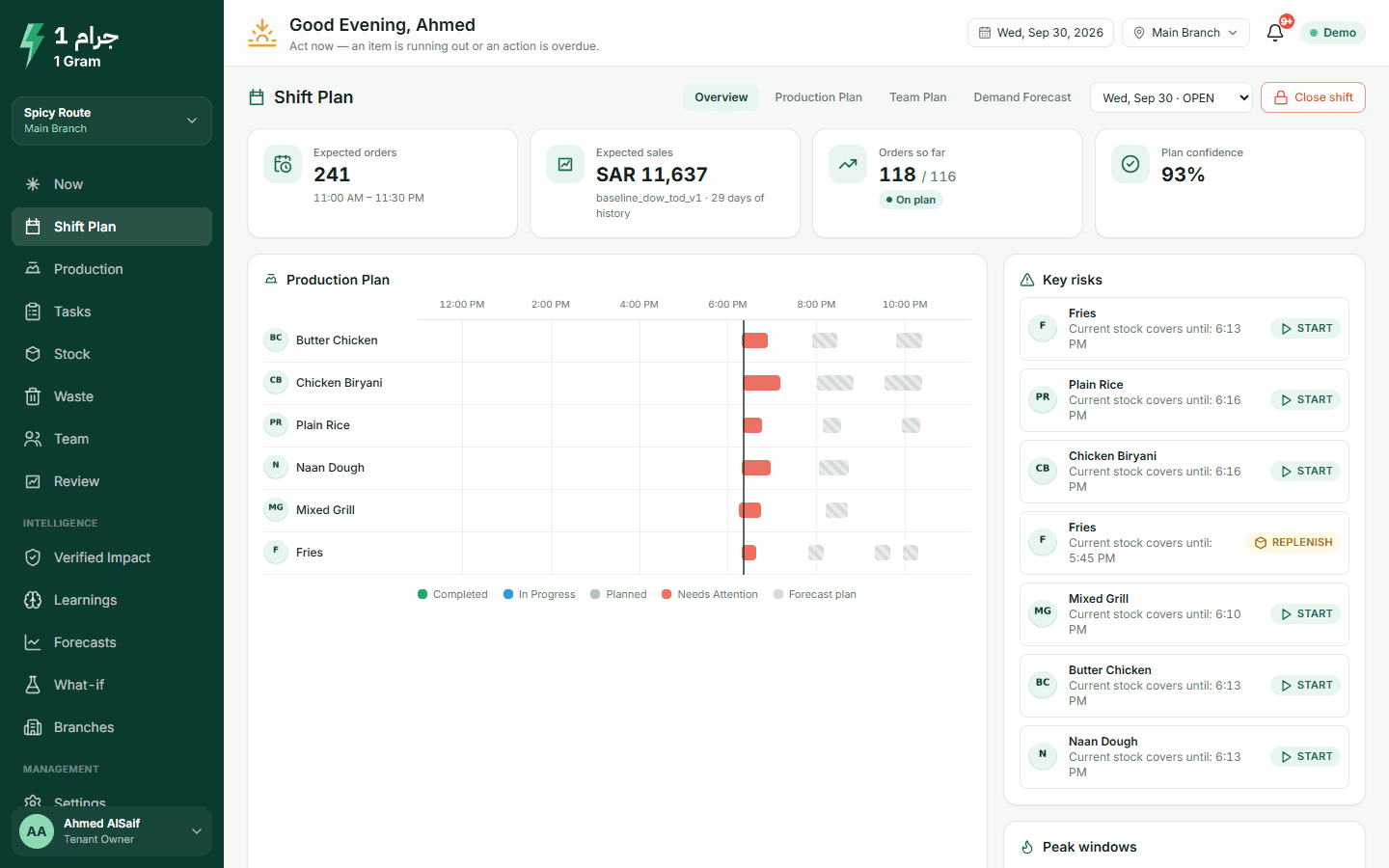
Before the first order you see how many orders and how much in sales to expect, when the peaks are, and the batches planned through the day. The team plan shows who is on which station.

Once the shift is running, the page compares orders so far with the forecast and tells you when demand has moved away from the plan.

  • The day's main risks are listed at the top
  • You open the shift by entering what is already cooked and ready
  • You close it with an end-of-night count. Leftovers that are not carried over are recorded as waste
  • Closing the shift builds its review
Open it in the live demo
Shift plan with expected orders and sales, peak times, risks and the batches planned for the day

Stock and receiving

Record deliveries with the invoice number and unit cost, transfers between branches, spoilage and counts. The system keeps an expected quantity for every ingredient: the last count, plus what came in, minus what each batch used according to its recipe.

When you count, you see the difference between what was expected and what is on the shelf, and what that difference is worth.

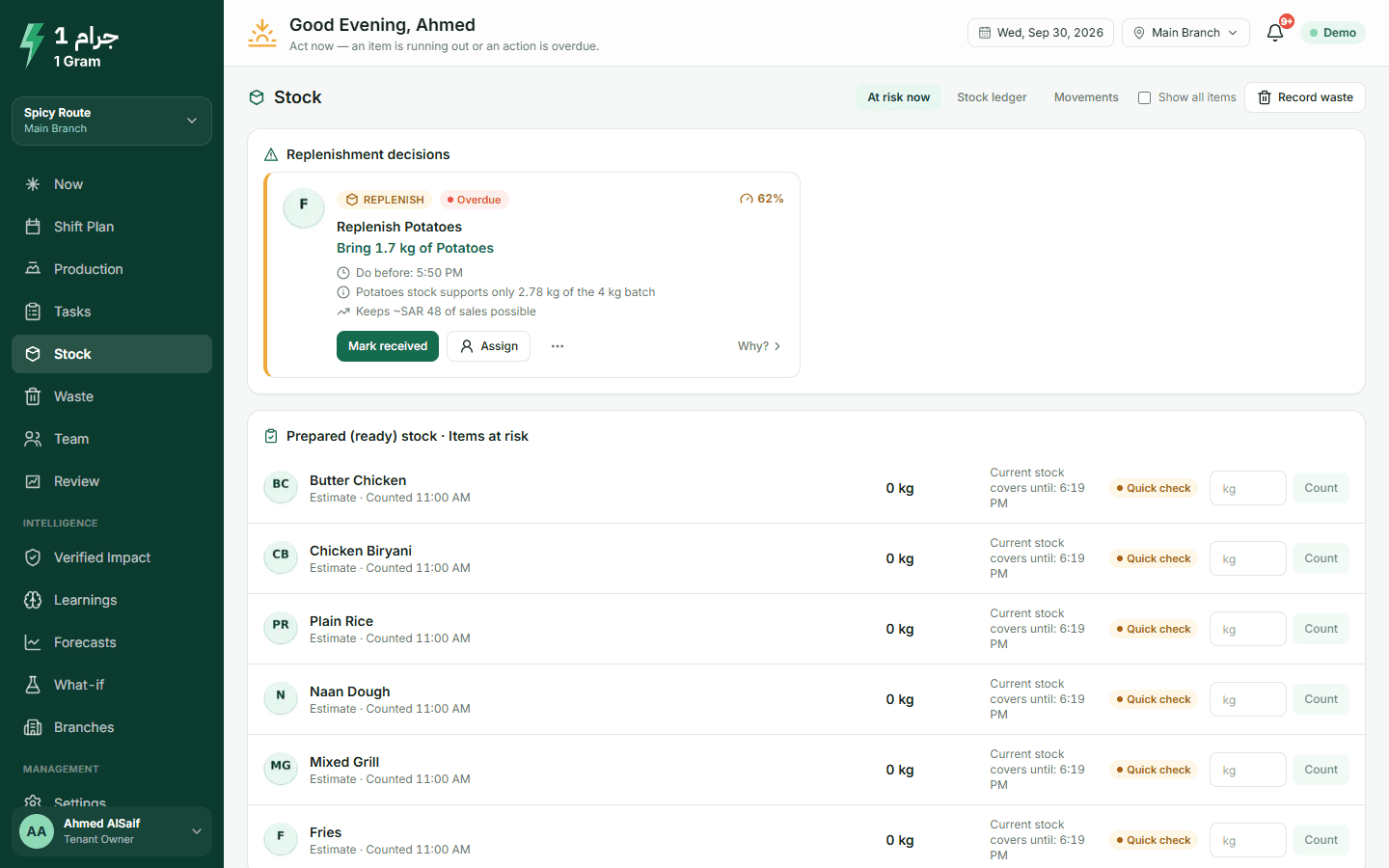
  • Items and ingredients that will not last until closing are listed first
  • If the ingredients for the next batch are missing, you get a replenish action before service
Stock page: items at risk, quantity on hand, what is needed until closing

Setting up your kitchen

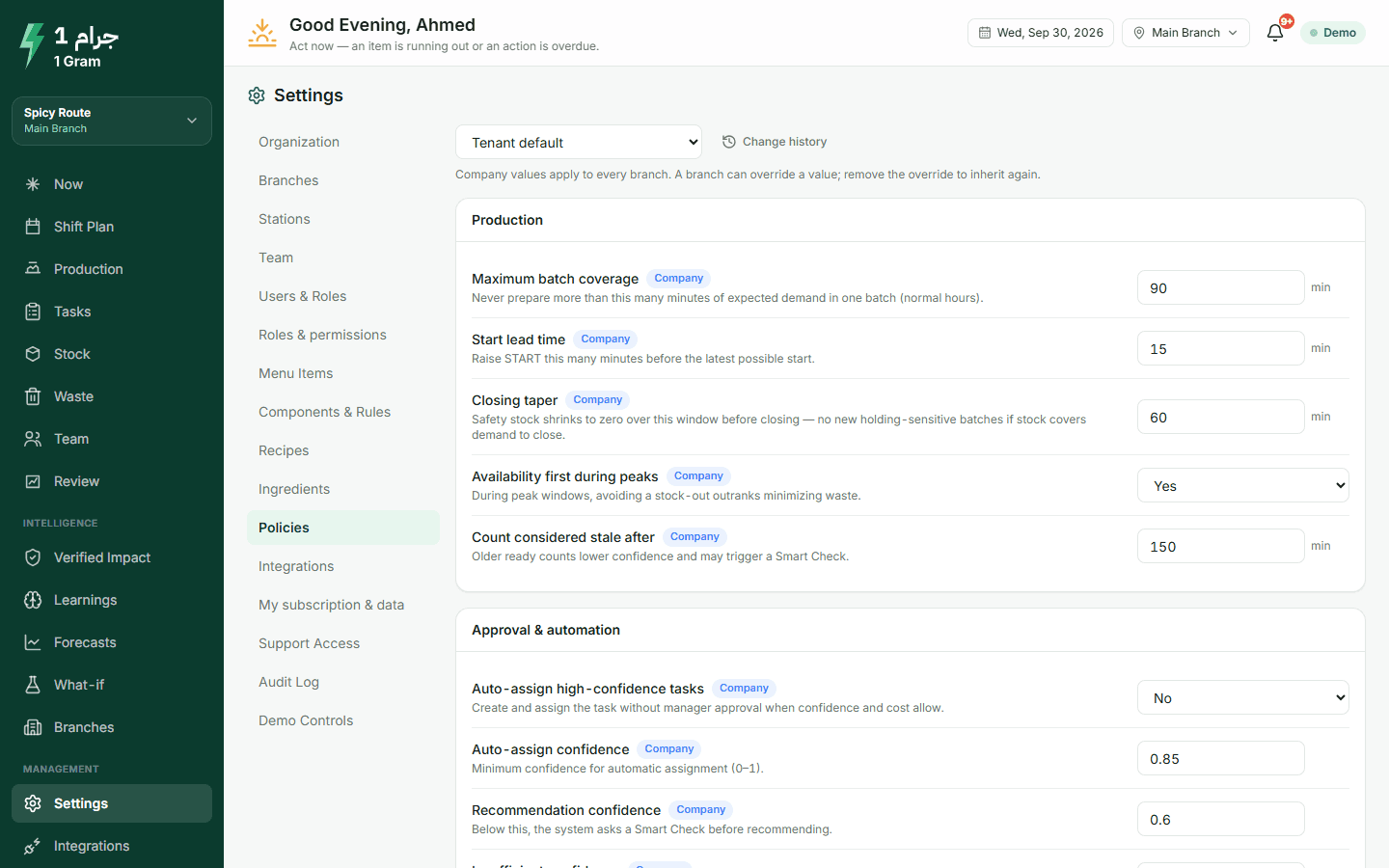
You enter branches, stations, menu items, prepared items and recipes once. For each prepared item you set the production rules: smallest and largest batch, prep time, how long it holds after cooking, and safety stock. Values are set for the company and a branch can change its own.

A setup checklist shows what is still missing. Until you switch the system live, every decision stays a recommendation and nothing is assigned automatically.

Open it in the live demo
Operating policies with company values and branch overrides

2 / 5

During the shift

Most of the day happens here. The manager approves actions, and the kitchen carries them out and records what it made.

The Now screen

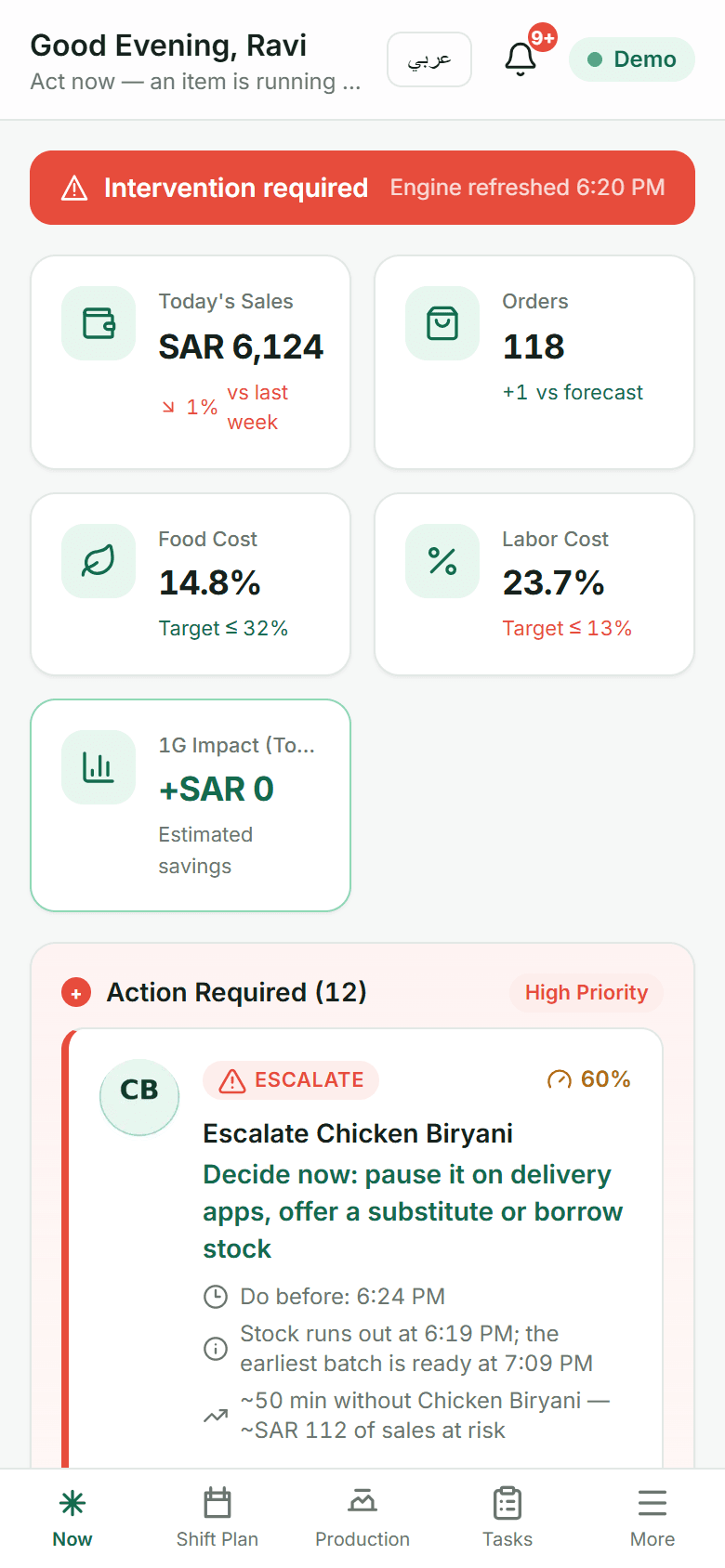
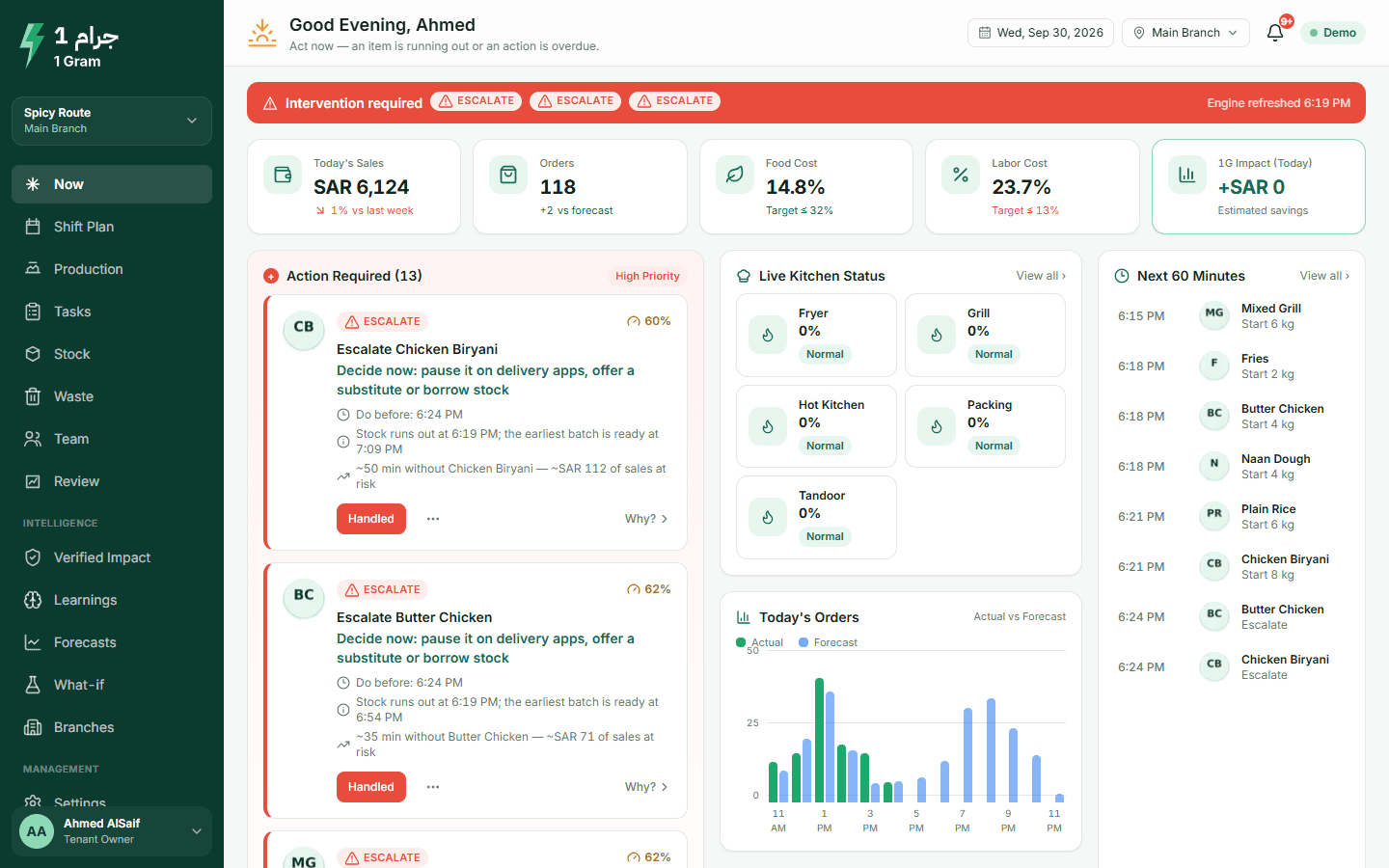
The first screen a branch manager opens. It lists what needs doing, most urgent first. For example: start 8 kg of chicken biryani before 6:15 PM, count the grilled chicken that is ready, or move a cook to the grill.

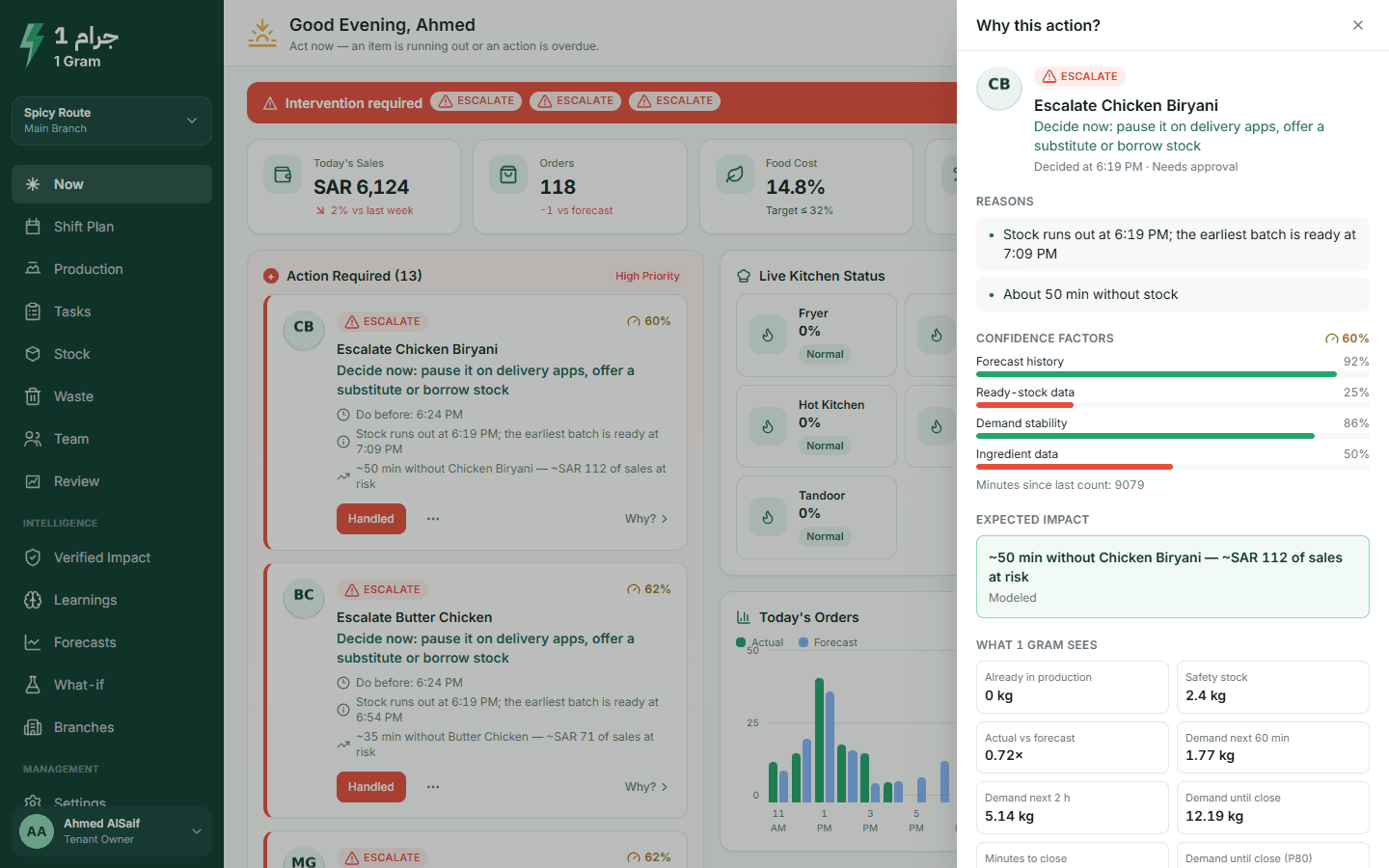
Each card shows the quantity, the deadline, how long current stock will last and how confident the system is. Tap Why? to see the reasons and the numbers behind it.

  • Approve, assign it to someone, or reject it with a reason
  • A banner at the top says whether the shift is under control, needs attention or needs you now
  • Today's sales, orders and food cost against last week
  • Batches due in the next hour and how busy each station is
Open it in the live demo
The Now screen: shift status, today's figures, action cards with deadlines and the next 60 minutes
The Why? panel: reasons, confidence factors and the numbers the system used

The seven actions you will see

Each one comes with its reason, the expected effect and a confidence level.

  • StartStart a batch now, with a quantity and a time to do it by. Stock would drop below the safety level before a later batch could be ready.
  • WaitDo not cook yet. What is ready covers the next stretch, and cooking now only means food sitting longer.
  • StopStop producing this item. What is ready covers expected demand until closing.
  • CheckCount what is ready first. The figure in the system is not reliable enough to act on.
  • ReplenishBring ingredients. A batch is needed but its ingredients are not there.
  • EscalateA manager has to decide now. No batch can be ready in time, so pause the item on delivery apps, offer a substitute or borrow from another branch.
  • MoveMove a trained person from a quiet station to one that is about to be overloaded.

By default a manager approves each action. Once you are live, you can let high-confidence actions under a cost limit go straight to the team.

Production

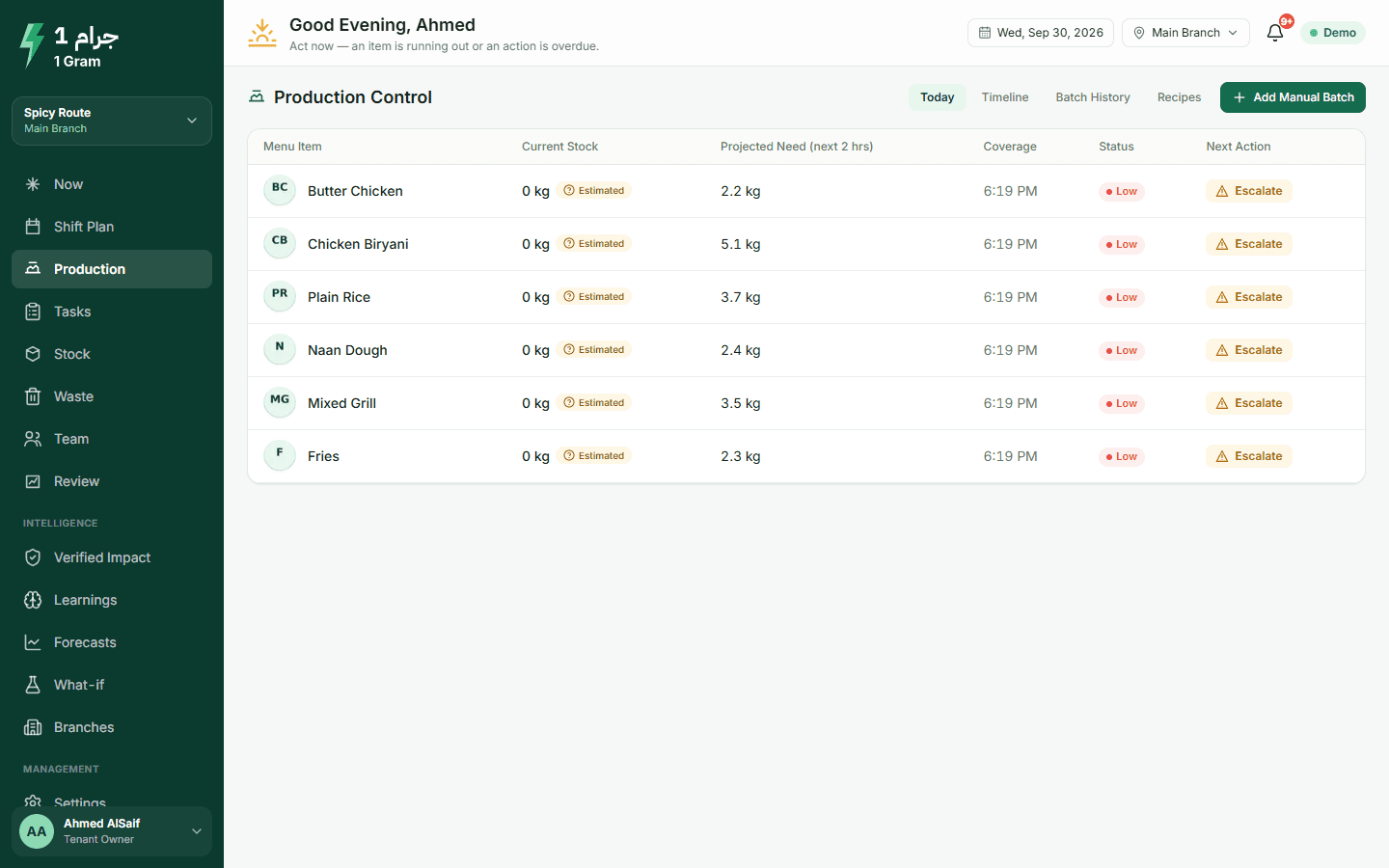
One row per prepared item: how much is ready, what the next two hours need, when it runs out, and the next step. Every ready quantity shows where it comes from: counted, tracked from the last count plus batches minus sales, or estimated.

If the till has sold more than should be ready, or the last count is old, the system asks for a quick count before it recommends anything.

Production page: ready quantity, need for the next two hours, coverage and next step per item
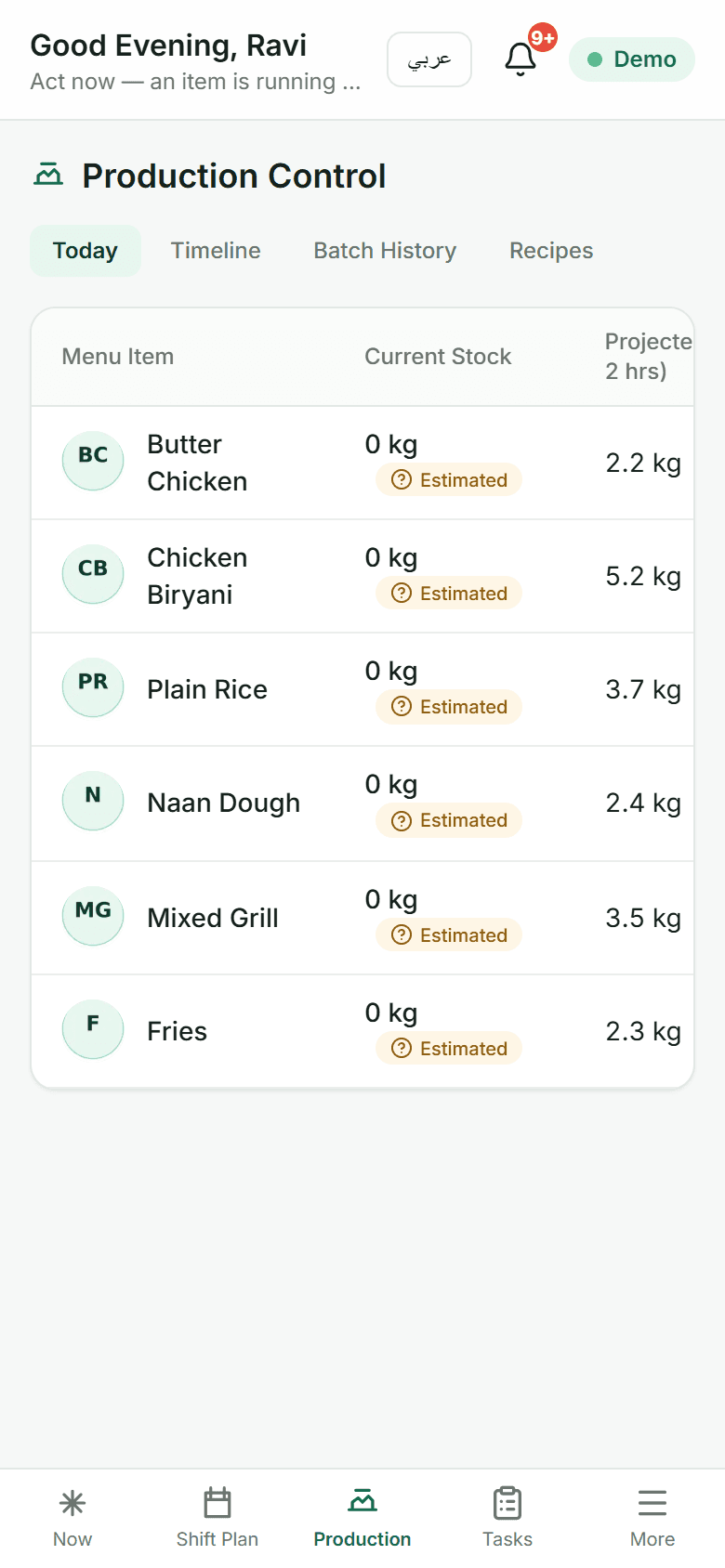
Production on a kitchen phone
Action cards on a kitchen phone

Tasks and team

An approved recommendation becomes a task: what, how much, and by when. The cook sees it on a phone or tablet, marks it started, then completes it with the quantity actually made and a photo if needed.

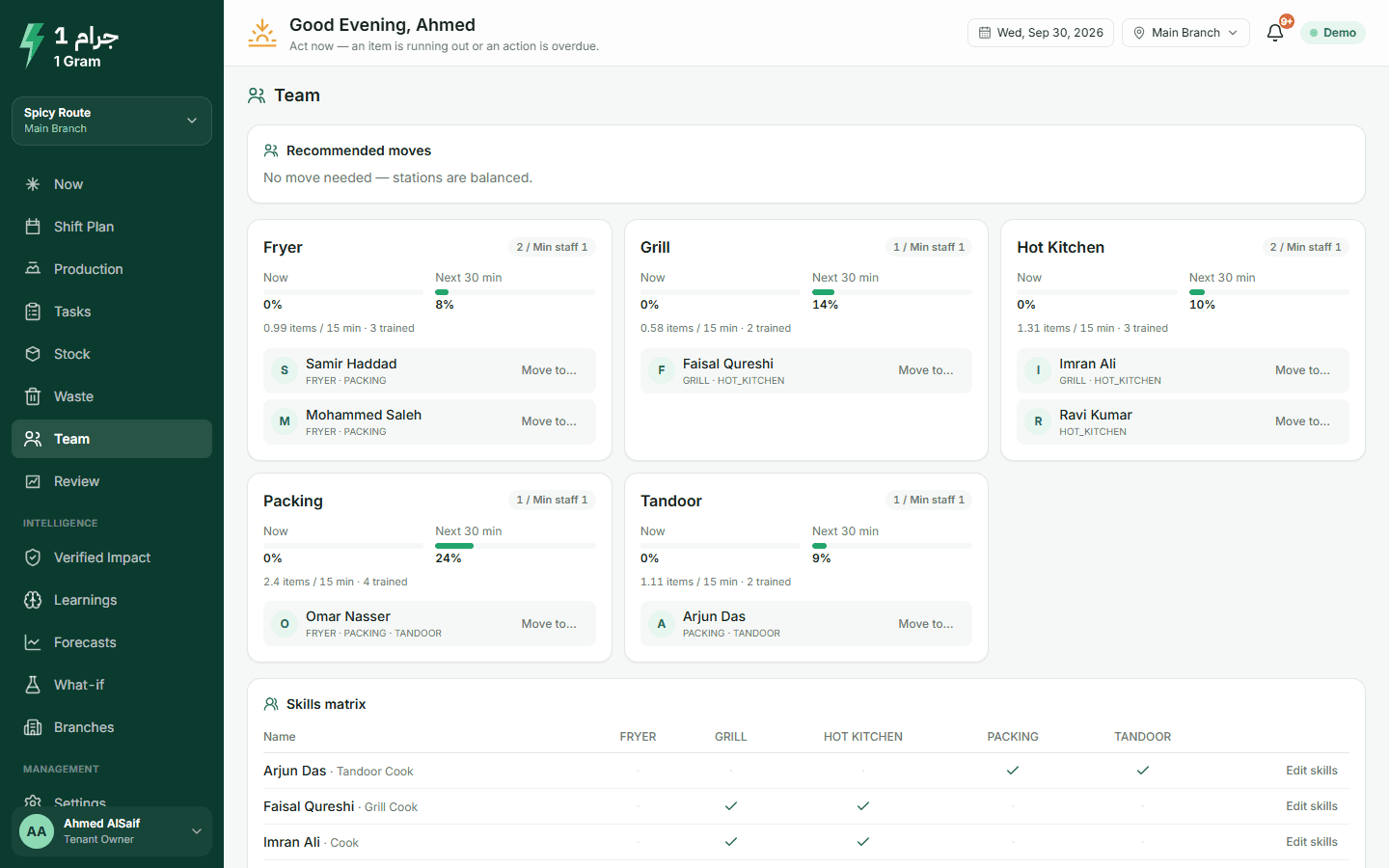
The Team page shows how busy each station is now and in 30 minutes. When a station is heading for overload, the system suggests moving someone trained for it from a station that can spare them.

  • Late tasks are flagged after a short grace period
  • With a time-clock connection, only people who clocked in count as available
Team page: load per station now and in 30 minutes, and a suggested move

Waste

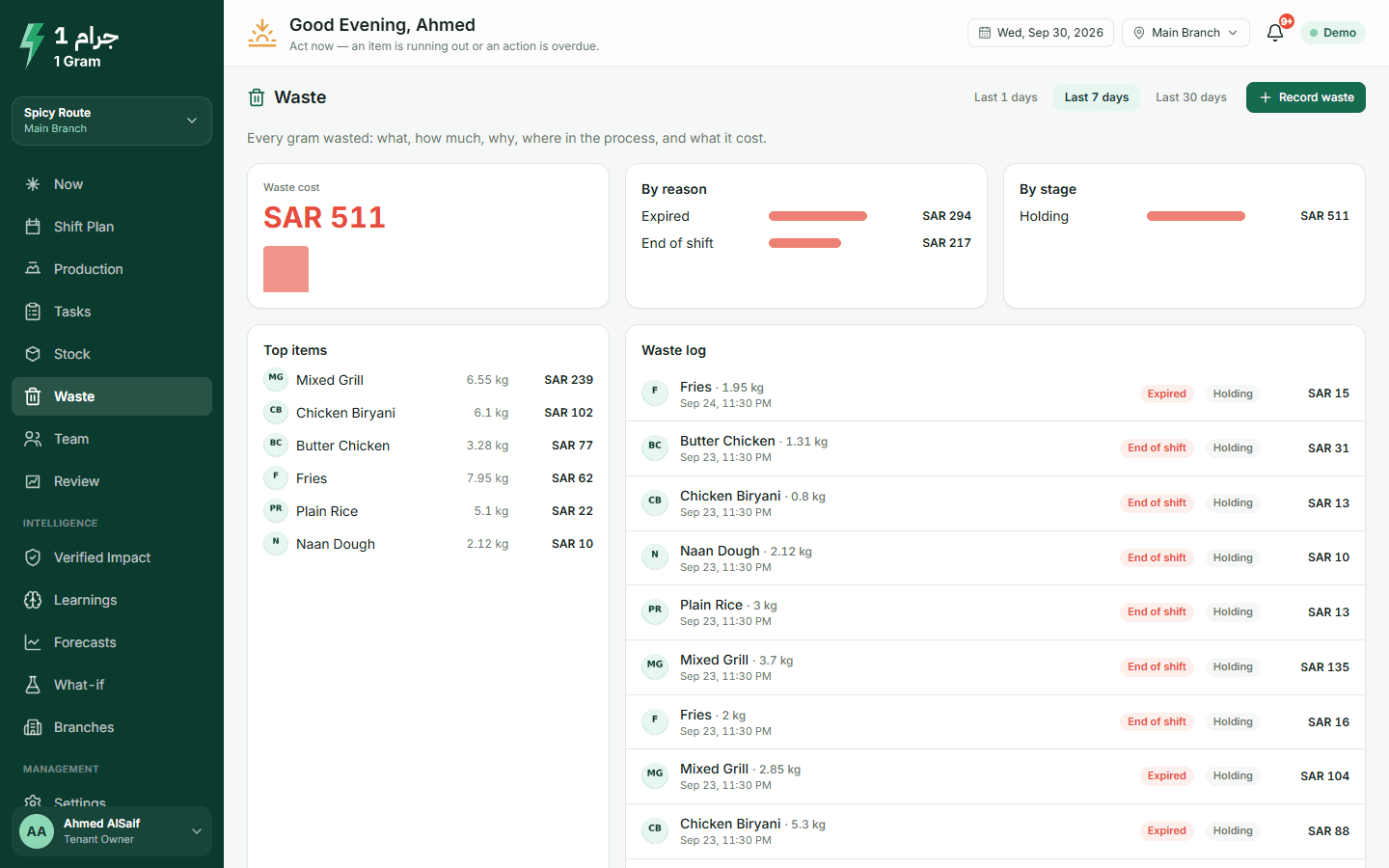
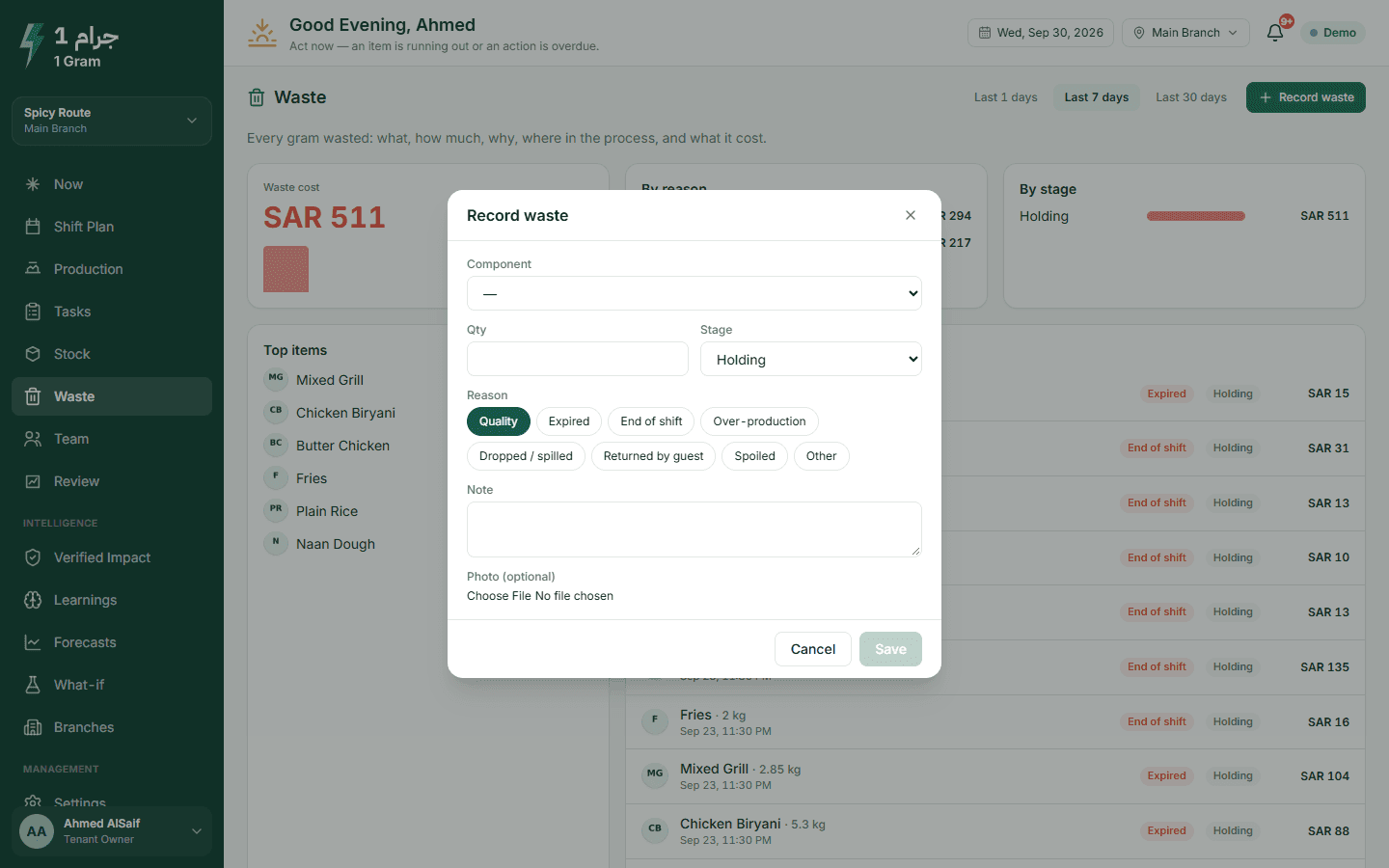
Record what goes in the bin: item, quantity, reason, stage, and a photo if you want. The Waste page adds up the cost by reason, stage and item, so you can see where most of it comes from.

Reasons to choose from

  • Quality
  • Expired
  • Over-production
  • Dropped or spilled
  • Returned by guest
  • Spoiled
  • End of shift
  • Other
Waste cost by reason, stage and item
Recording waste with reason, stage and photo

3 / 5

After the shift

When a recommendation's time window ends, the system checks what actually happened.

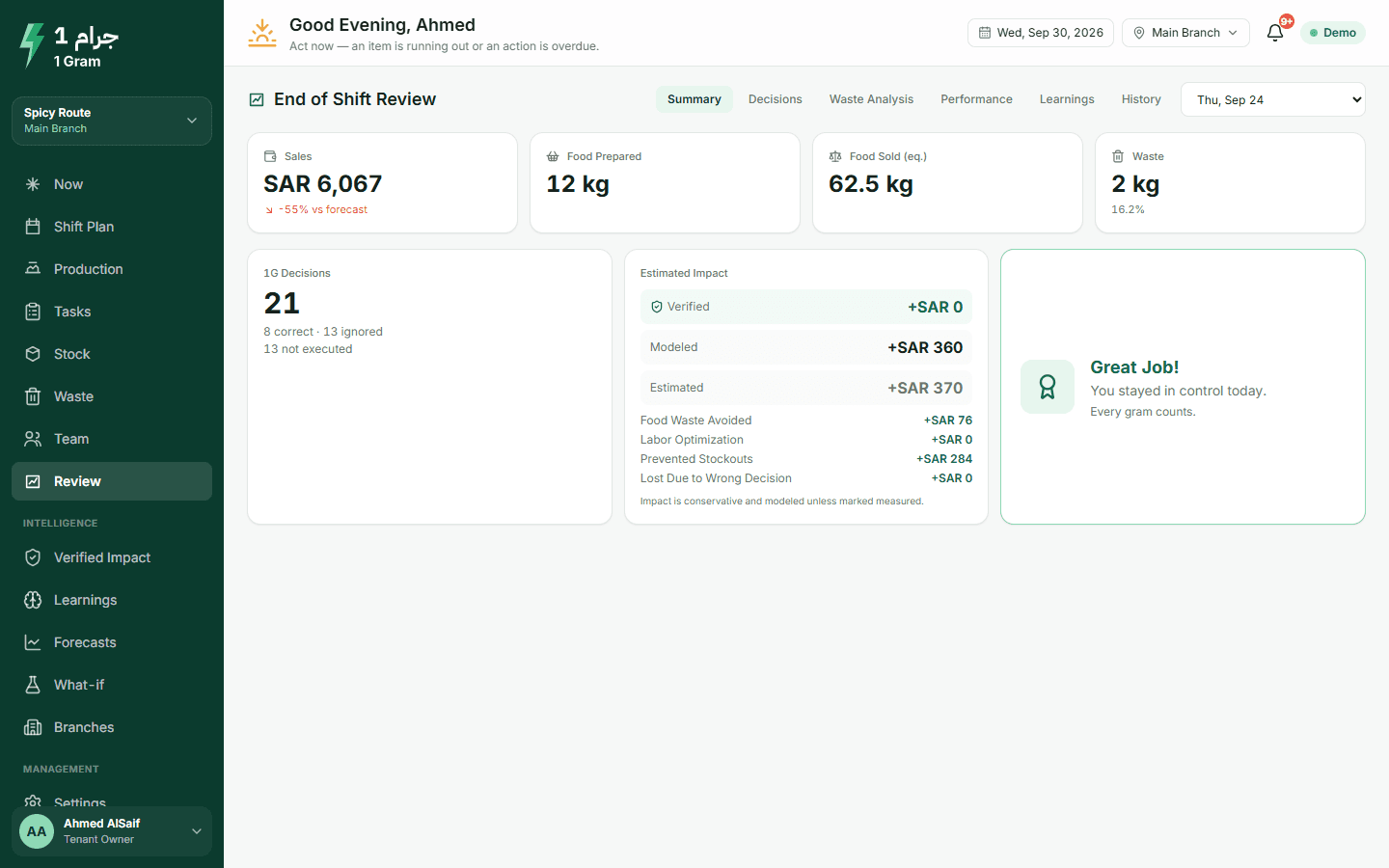
Shift review

Each recommendation gets a verdict: correct, neutral, incorrect, ignored or unverifiable. You also see the reason, for example started late, batch too big, item ran out, or never done.

  • Execution rate: how many approved actions were done in time
  • A decision quality score for the shift
  • Notes from earlier shifts, such as an item that keeps selling above forecast on Thursdays
Open it in the live demo
Shift review: execution rate, decision quality and the verdict on each decision

Verified impact

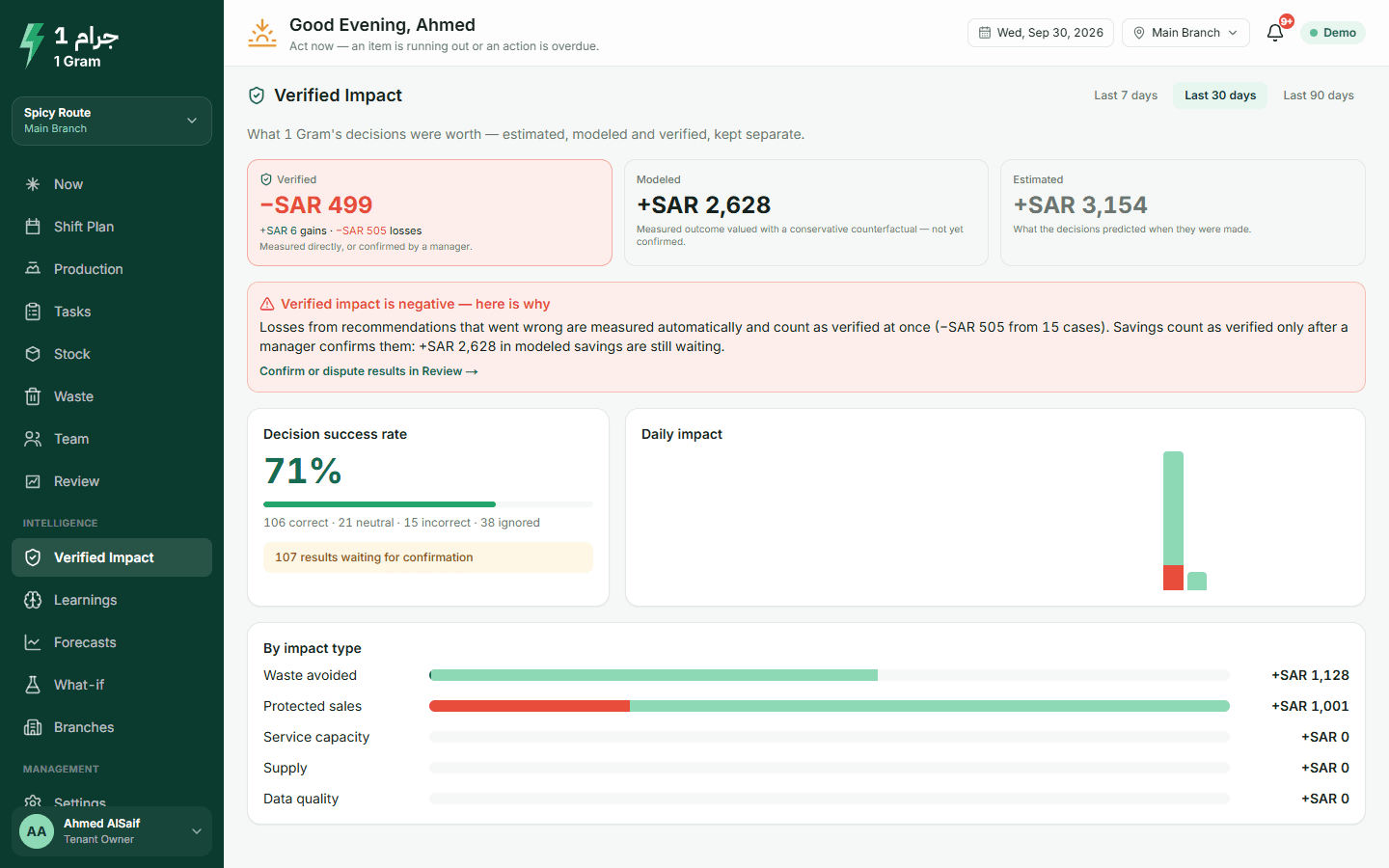
Money is counted carefully here. A loss caused by a wrong recommendation counts straight away. A saving only counts as verified once a manager confirms it, and a manager can dispute it with a reason. Gains and losses are shown separately.

Sales protected from a stock-out are counted at their margin. Waste avoided by cooking later counts at half its value, because the kitchen might not have cooked it anyway.

Verified impact with gains and losses shown separately

Every amount carries one of four labels

Estimated
What the recommendation expected when it was made.
Modeled
A measured result valued with a cautious assumption. Not confirmed yet.
Verified
Measured directly, or confirmed by a manager.
Excluded
Disputed by a manager, so it is left out.

Learning and forecasts

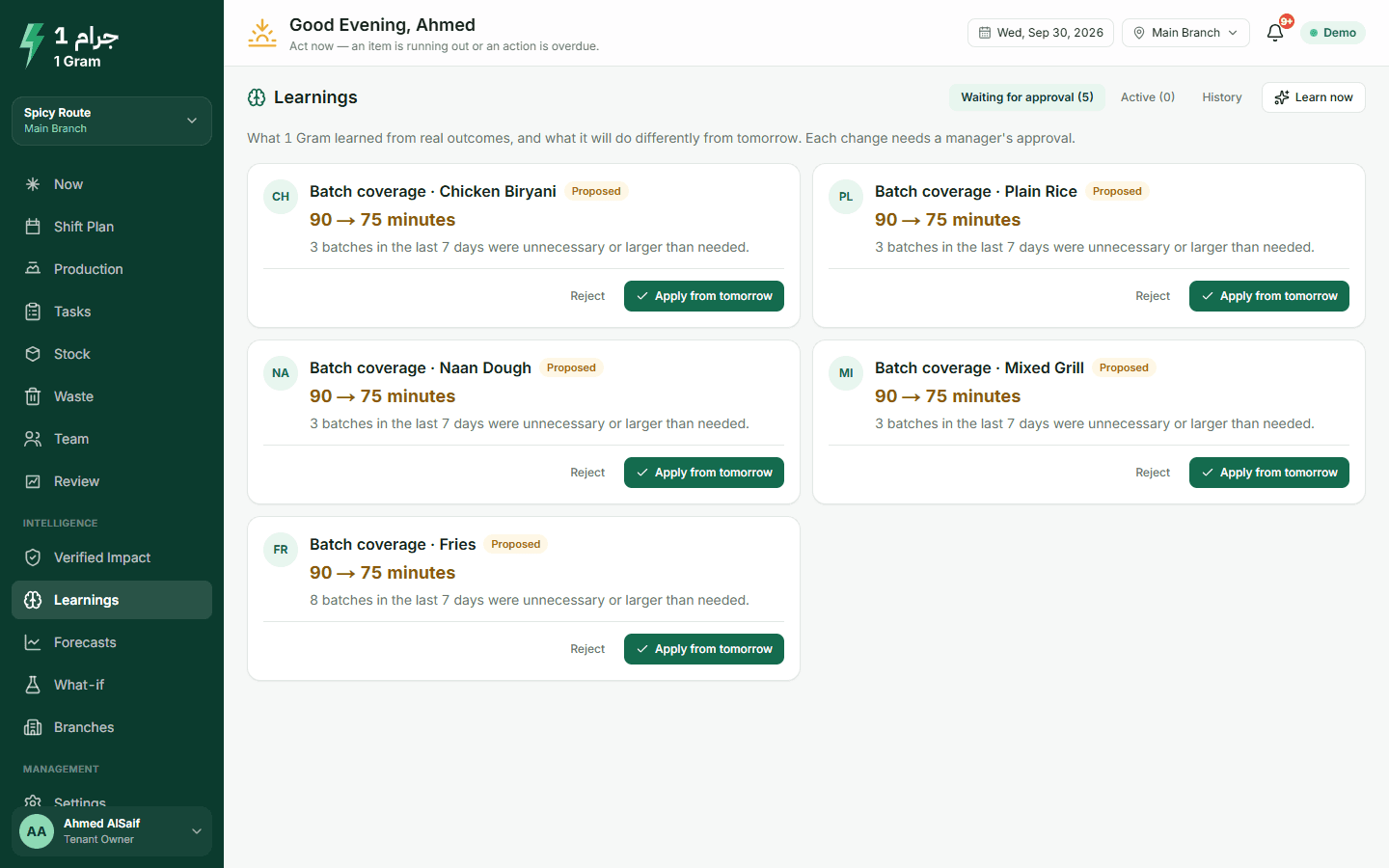
If an item keeps running out, or its forecast is always too high or too low, the system proposes a change: more safety stock, a forecast correction, or a shorter batch coverage. Each proposal shows its evidence and waits for a manager. It applies from the next day and can be reverted.

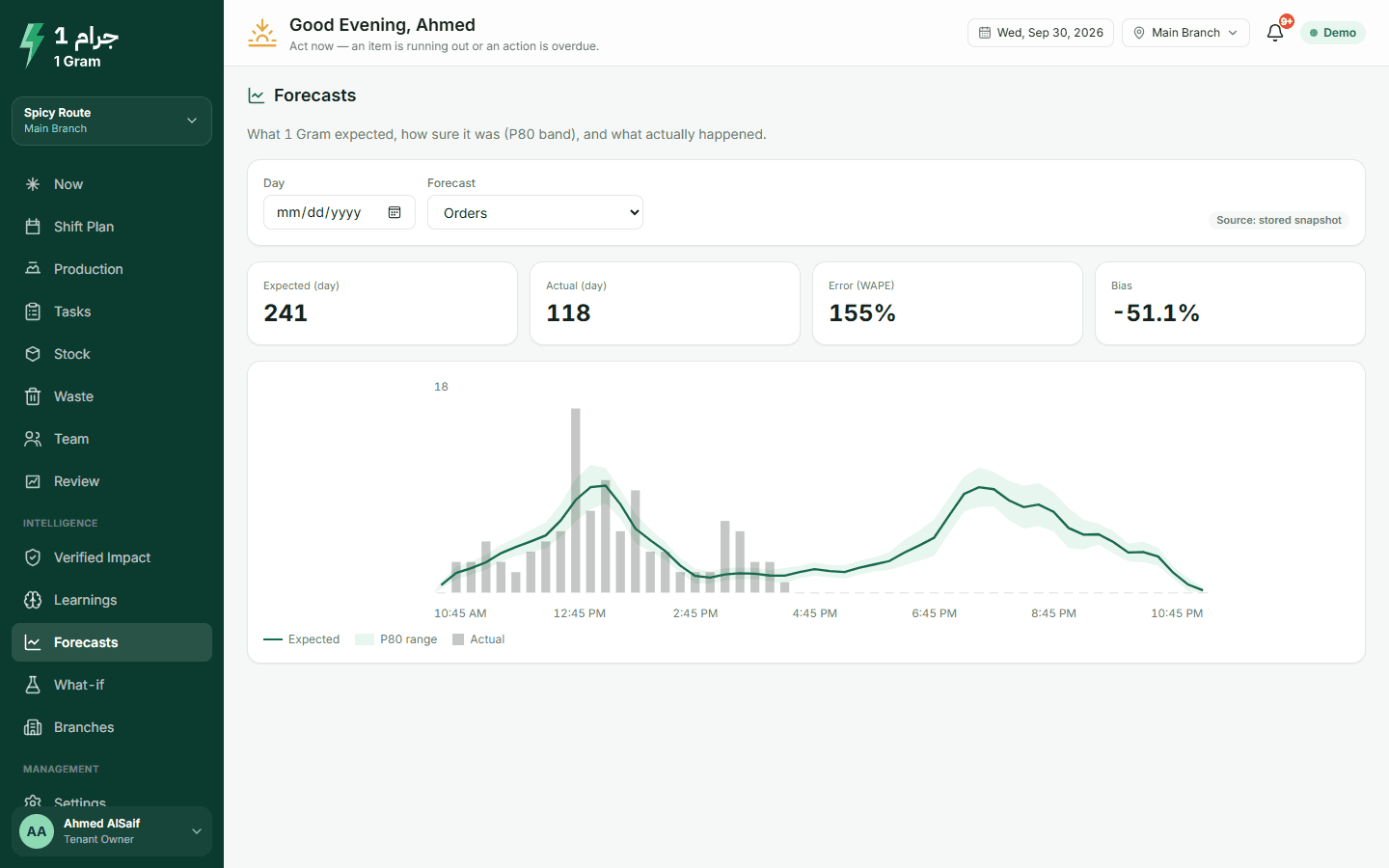
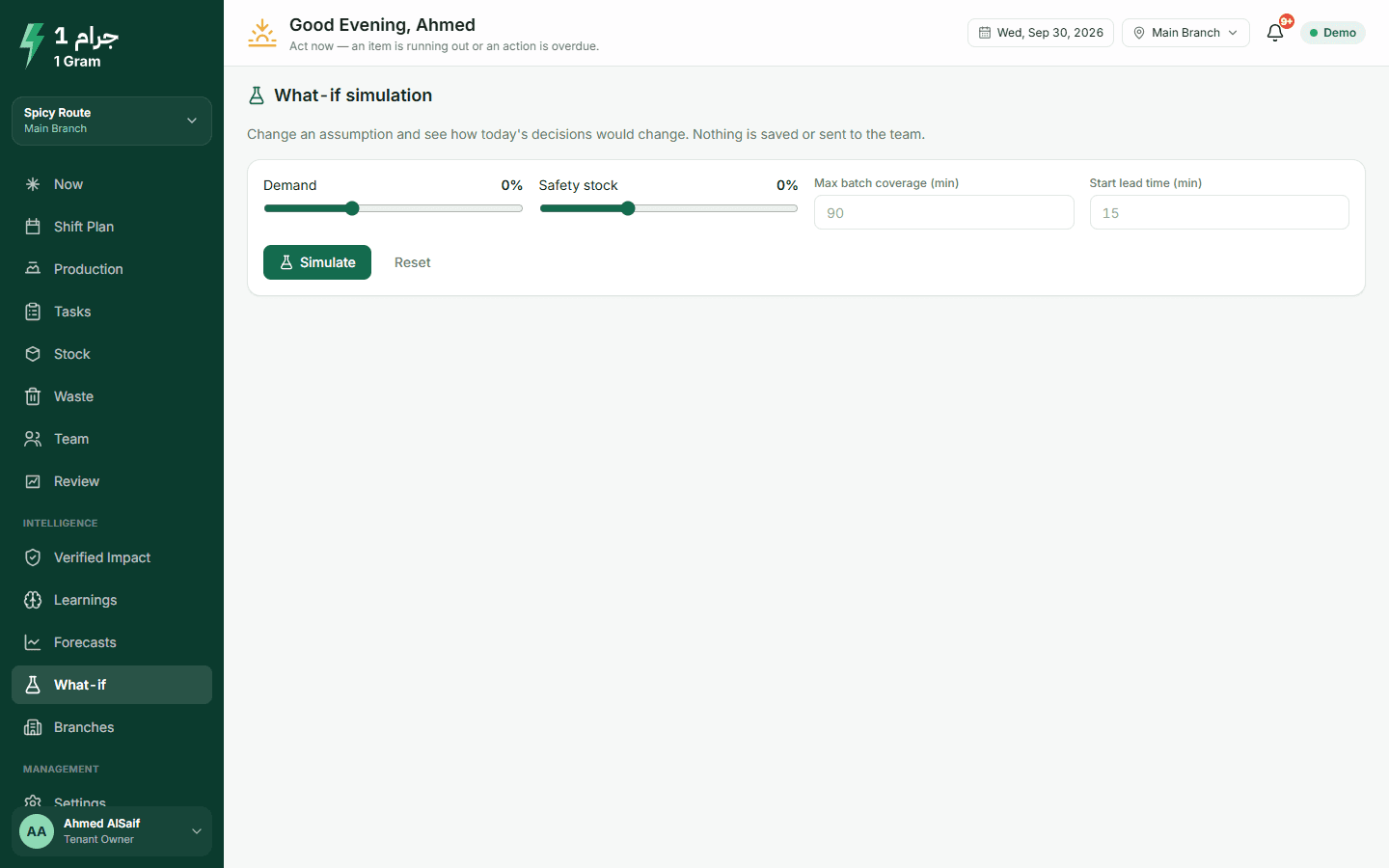
The Forecasts page shows expected against actual for every 15 minutes, with the error. On the What-if page you can change demand or safety stock and see how today's batches would change. Nothing is saved and no tasks are sent.

Proposed adjustments with their evidence, waiting for approval
  • A forecast correction stays between 0.80 and 1.25
  • Safety stock rises 25% at a time, up to twice the value you set
  • Batch coverage shortens 15 minutes at a time and never goes below 45 minutes
Forecast against actual sales per 15 minutes
What-if: today's plan compared with a changed scenario

4 / 5

For the owner

You see how every branch is doing without reading every kitchen alert.

Branches and red flags

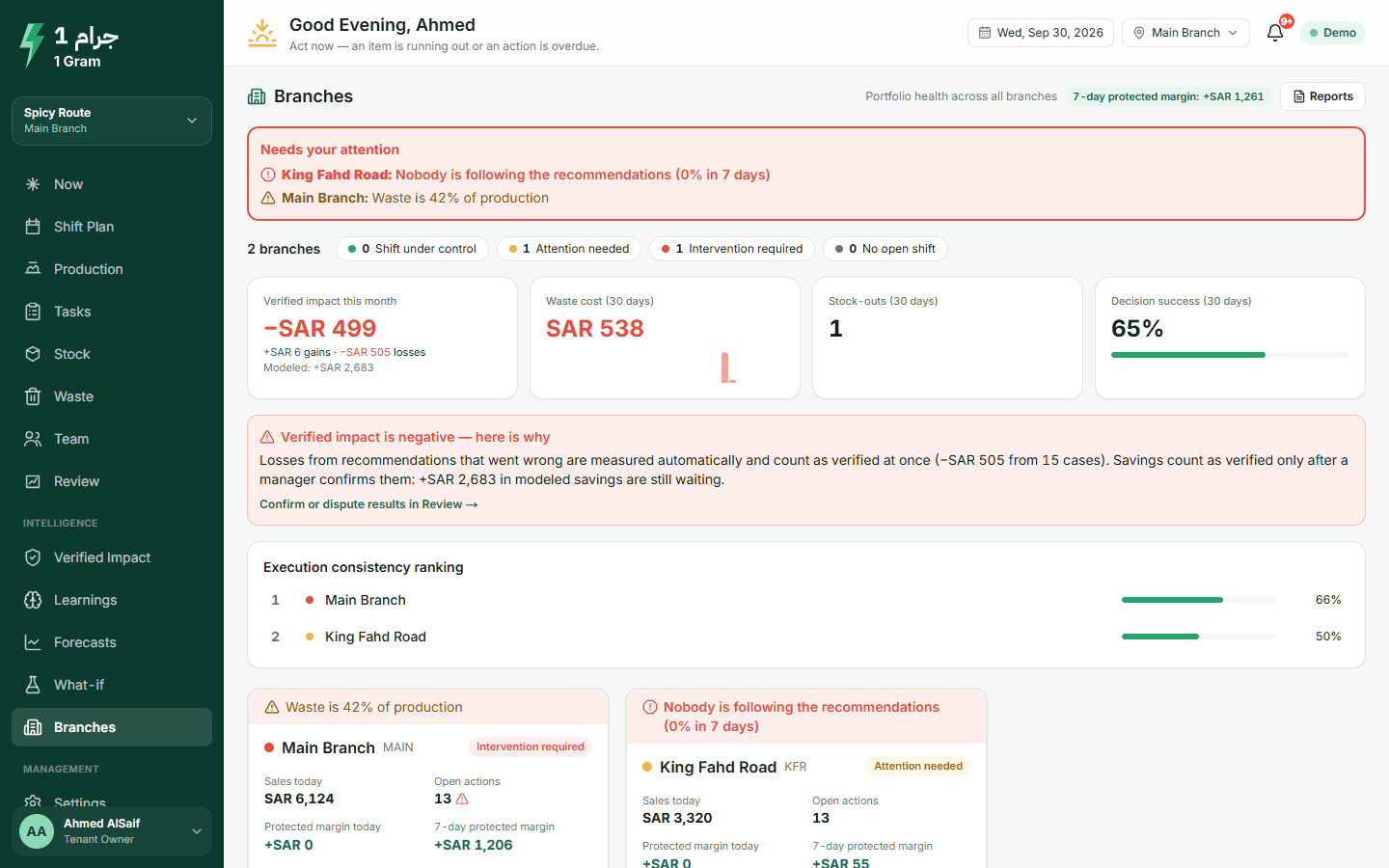
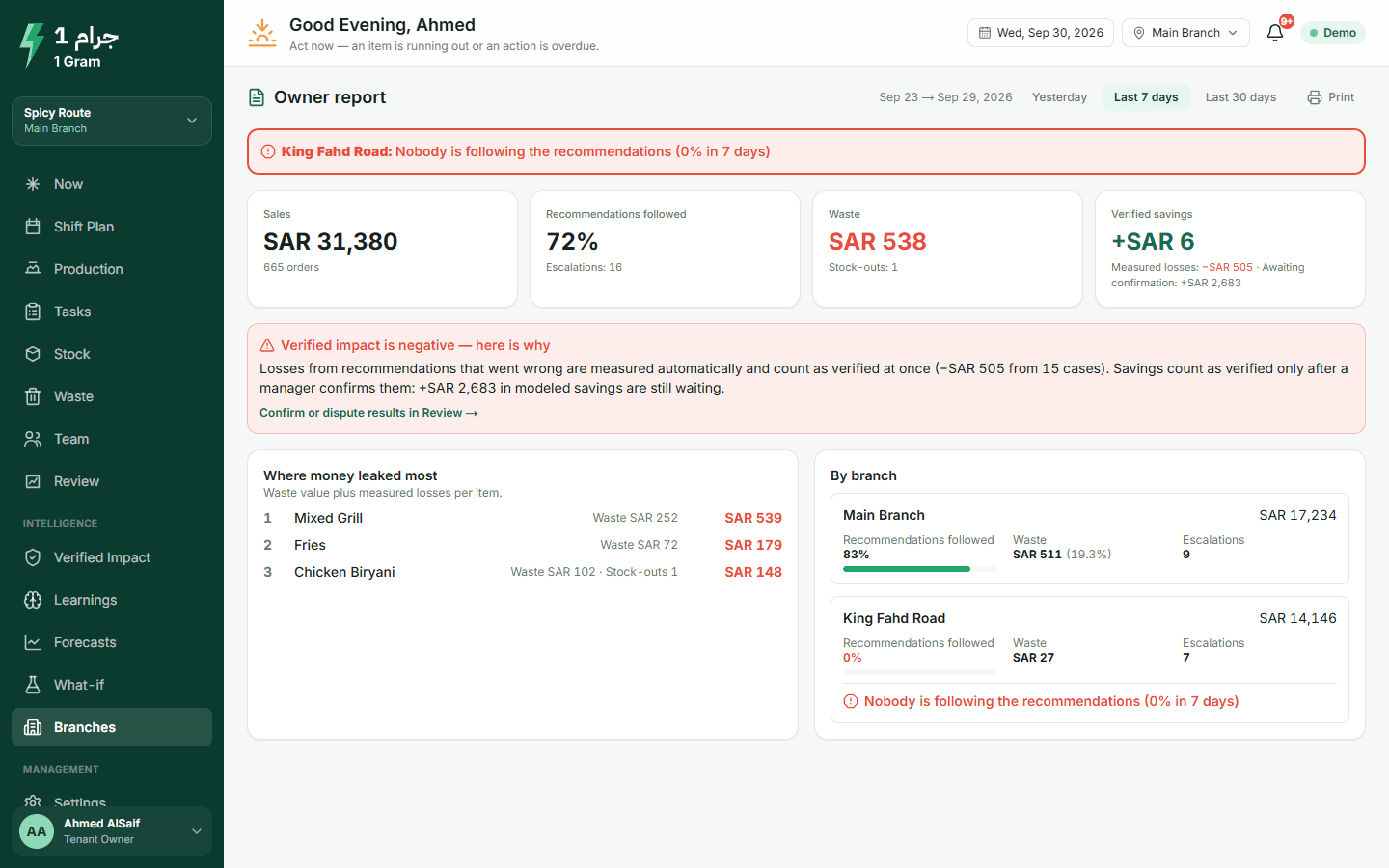
Every branch in one row: today's sales, execution rate and decision quality over 7 days, and open actions. Above the list, red flags in plain words: nobody is following the recommendations, waste is high, items keep running out, or the measured result is negative.

  • Branches ranked by how consistently they follow the recommendations
  • Waste and stock-outs compared after allowing for each branch's size
Open it in the live demo
Branches screen with red flags and the branch ranking

Daily summary and weekly report

Every morning at 8 you get yesterday's summary in the app and by e-mail. At the start of each week the weekly report arrives as well.

You can also open a report for yesterday, the last 7 days or the last 30 days and print it. It covers sales, recommendations followed, escalations nobody answered, waste, stock-outs, verified savings, measured losses and the items where most money was lost.

Open it in the live demo
Owner report: sales, execution, waste, savings, losses and where money was lost

Who gets which notification

Kitchen alerts stay with the branch. The owner hears about what needs the owner.

Branch team

  • Count requests
  • Replenishment
  • Escalations
  • Staff moves
  • Late tasks
  • Missing clock-ins

Owner and operations

  • Escalations unanswered after 15 minutes
  • Daily summary
  • Weekly report
  • Kitchen alerts, only for those who ask

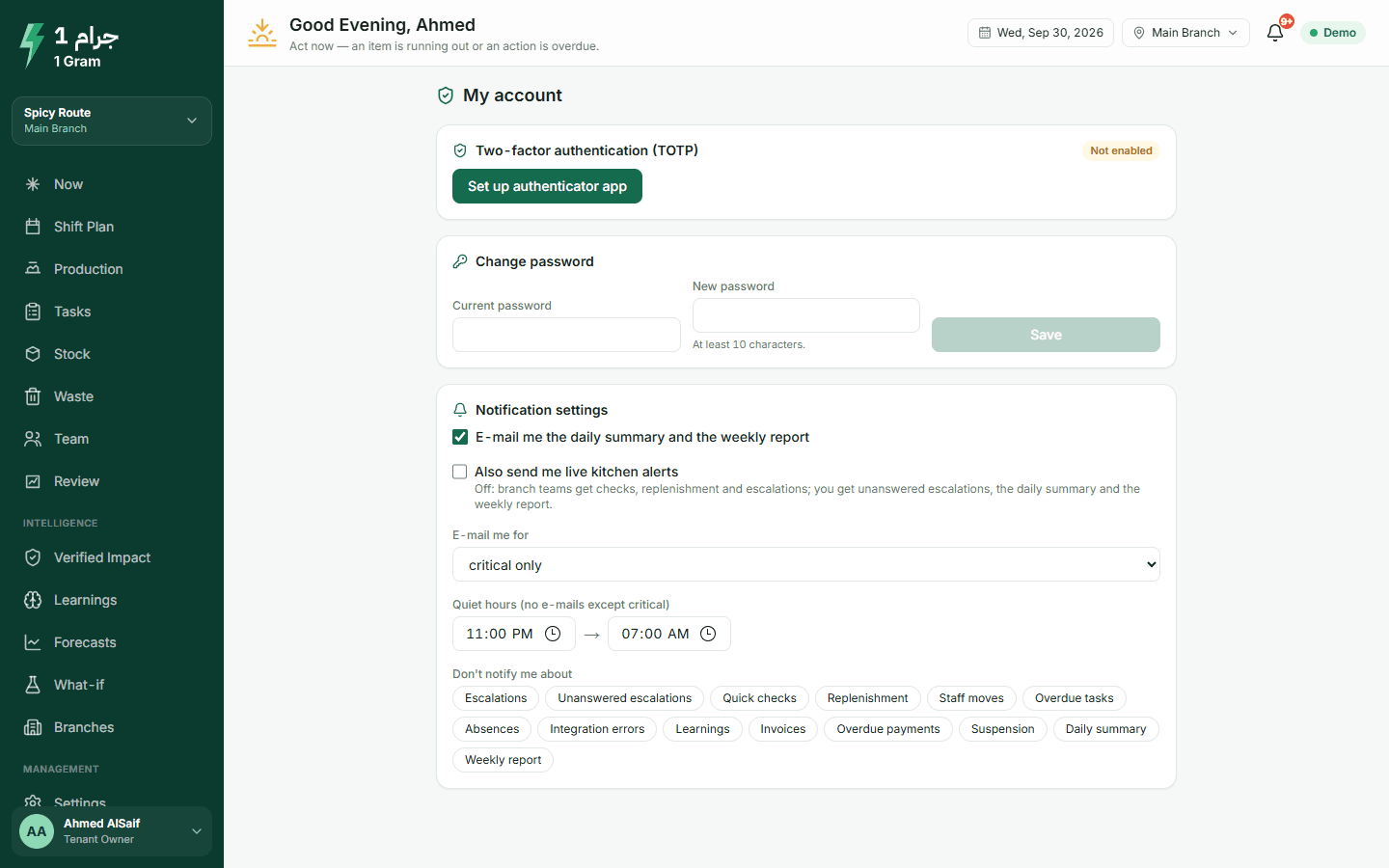
Each person chooses how much e-mail they get, sets quiet hours and mutes what they do not need. The same alert reaches a person at most once every six hours.

Notifications arrive in the app and by e-mail. Push and WhatsApp notifications are not available yet.

5 / 5

Setup, connections and security

Done once, usually by the owner or an operations admin.

Connecting your POS

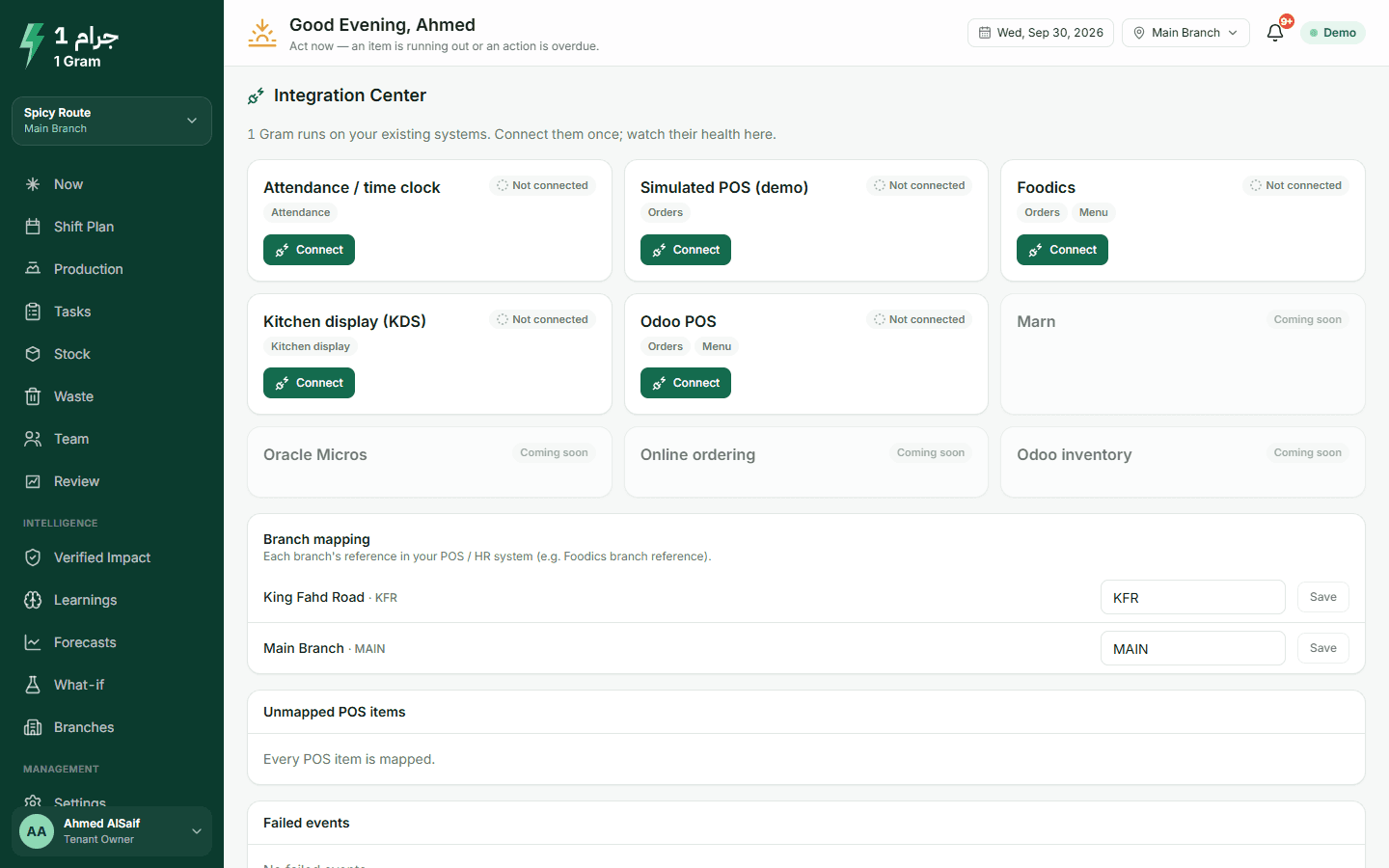
1 Gram reads orders and menu items from Foodics and Odoo, and clock-ins from a time clock through a webhook. If your POS is not supported, upload a sales file instead.

The Foodics and Odoo connectors have been tested with sample data so far. We check them against your account during onboarding.

  • Items the POS sends that the system does not know are listed for you to map, and their sales are kept
  • Events that failed are kept so you can retry them
  • Your POS login details are stored encrypted
Open it in the live demo
Integrations page with connections, branch mapping, unknown items and failed events

Access and security

Who can see and change what, and how your data is kept apart from other companies.

Roles per branch
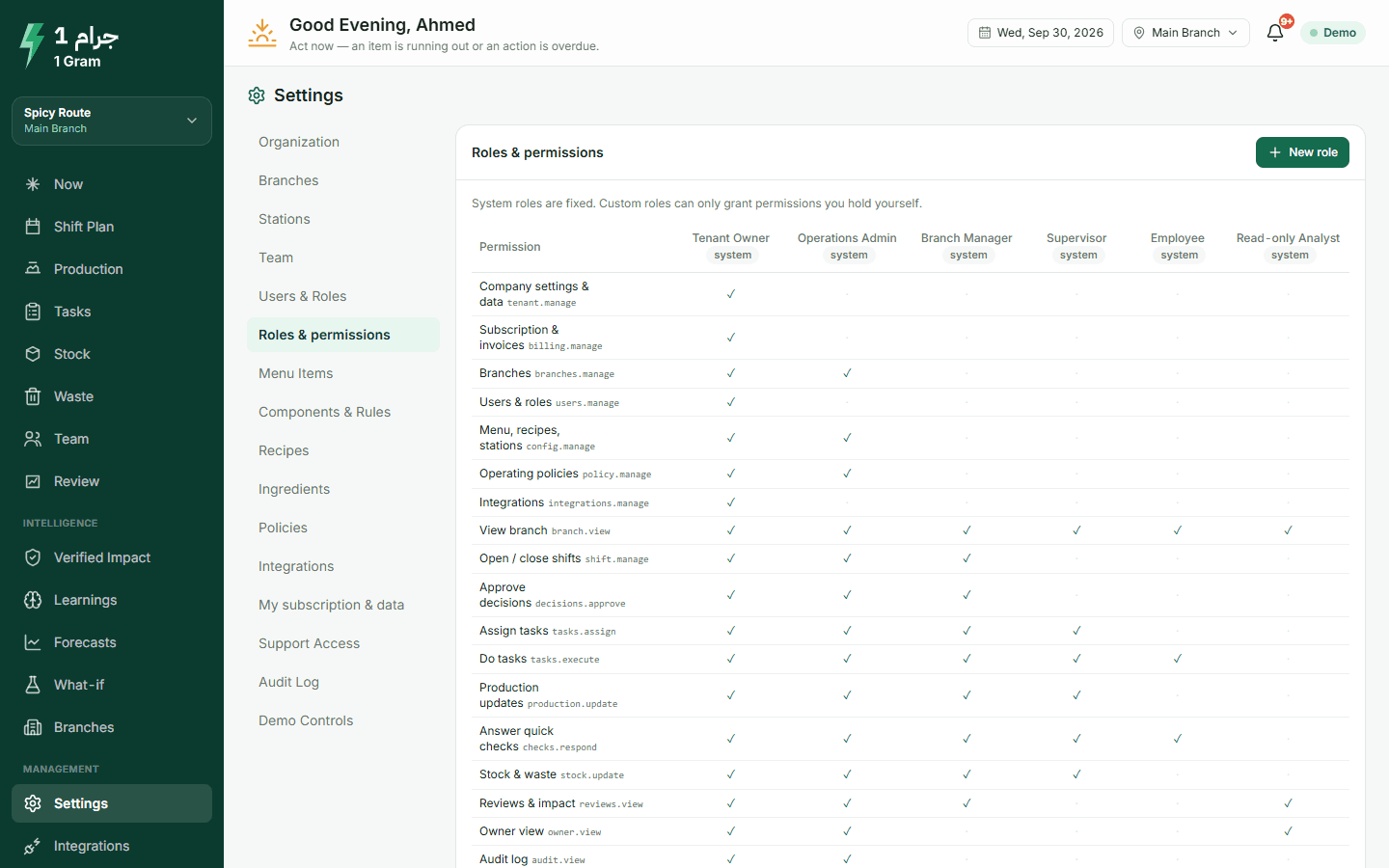
Owner, operations admin, branch manager, supervisor, employee and read-only analyst. Each person gets a role in each branch they work in.
Two-step verification
A code from an authenticator app at sign-in. You can make it required for owners and admins.
Audit log
Sign-ins, approvals, settings changes, waste records and exports, with who did it and when.
Separation between companies
Every record belongs to one company, and the database itself blocks access across companies.
Data export
Download all your data as a zip file at any time. Integration passwords are left out.
Roles and permissions
My account: two-step verification and notification settings

The same screens, on a demo restaurant

Click through everything on this page, with numbers that look like a real restaurant's, before you decide anything.

The live demo opens your own copy of a demo restaurant with two branches and four weeks of sales. No account needed.

Start free trial

Live demo without an account · Arabic and English